

基于tauri+vue3.x多开窗口|Tauri创建多窗体实践
最近一种在捣鼓 Tauri 集成 Vue3 技术开发桌面端应用实践,tauri 实现创建多窗口,窗口之间通讯功能。
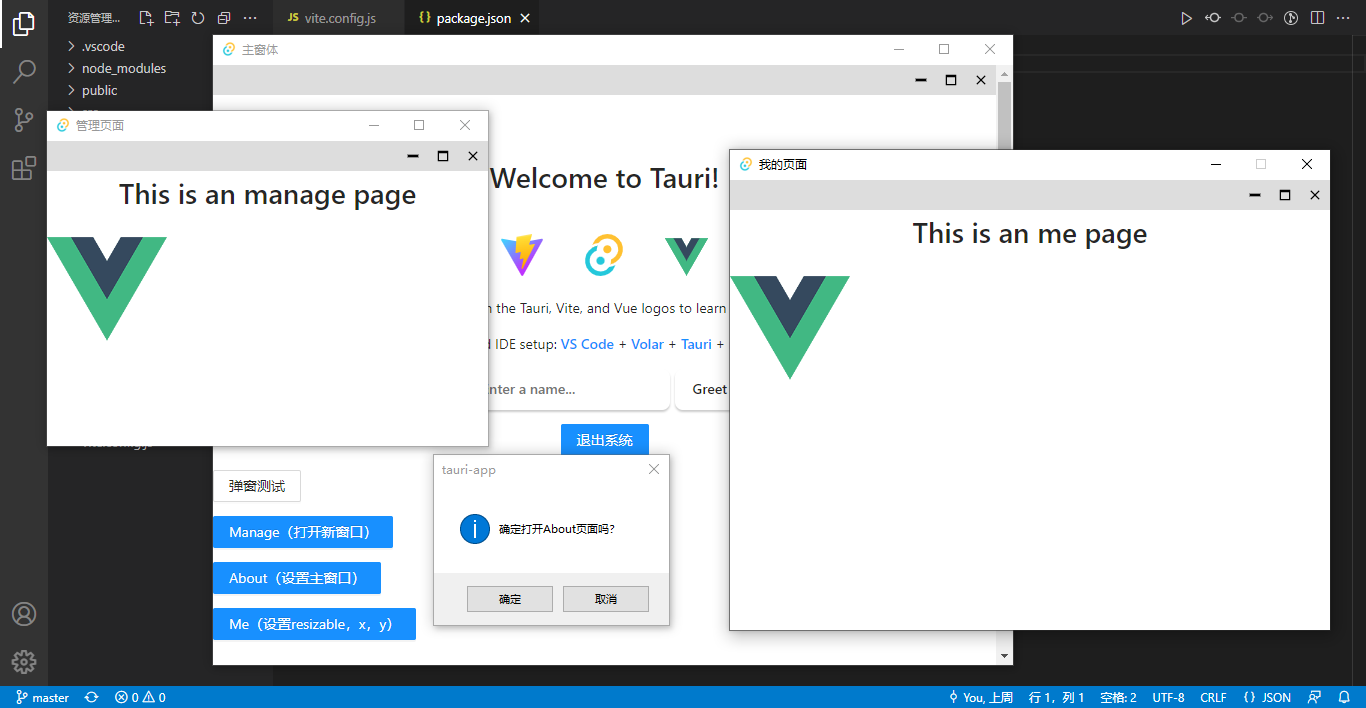
开始正文之前,先来了解下 tauri 结合 vue3.js 快速创建项目。
tauri 在 github 上star高达53K+,而且呈快速增长趋势。相比electron构建应用更具优势。

分别用 Tauri 和 Electron 打包测试一个 todo list 程序。
Electron打包体积 69 M,Tauri打包体积才只有 7.5 M。
Tauri 构建的桌面应用体积远远比 Electron 构建的小得多。因为它放弃了体积庞大的 Chromium 内核和Nodejs,tauri前端集成了 webview,后端使用 Rust。而且 Tauri 构建应用还提供了诸多初始化程序模板,比如原生 JavaScript、Vue2/3、React、Svelte.js、SvelteKit 等。
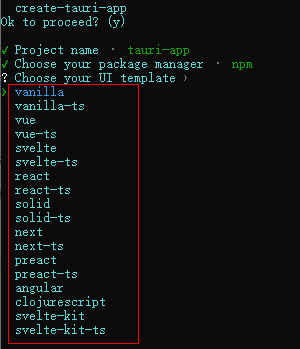
准备工作
首先您需要安装 Rust 及其他系统依赖。
- "C++ 生成工具" 和 Windows 10 SDK。
- Tauri 需要 WebView2 才能在 Windows 上呈现网页内容,所以您必须先安装 WebView2。
- Rust
具体操作,请前往 预先准备 | Tauri Apps 来按步骤操作。
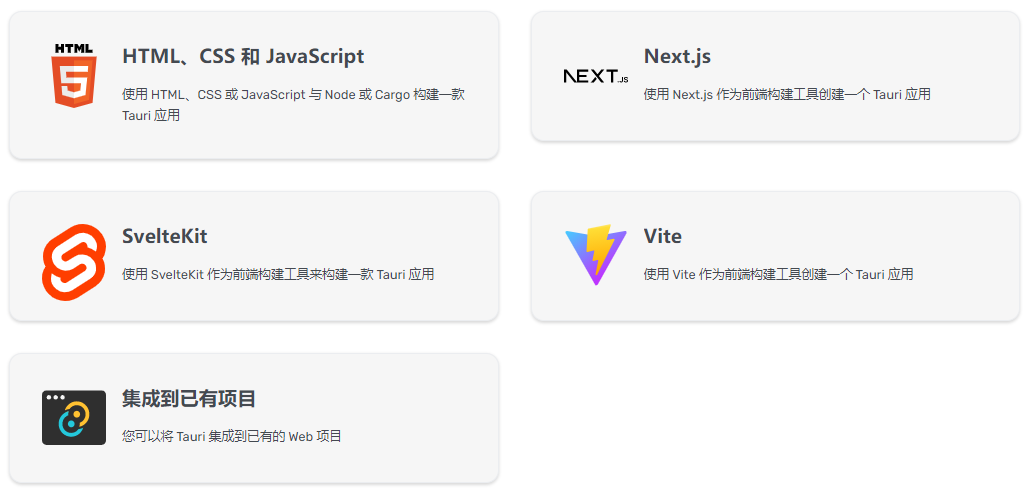
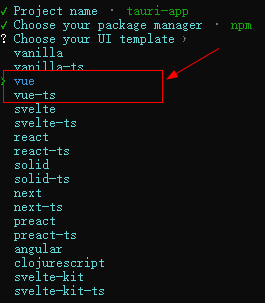
- 创建 tauri 初始化项目
具体的前端框架模板,大家根据实际情况选择。
npm create tauri-app
- 开发/构建打包
tauri dev tauri build
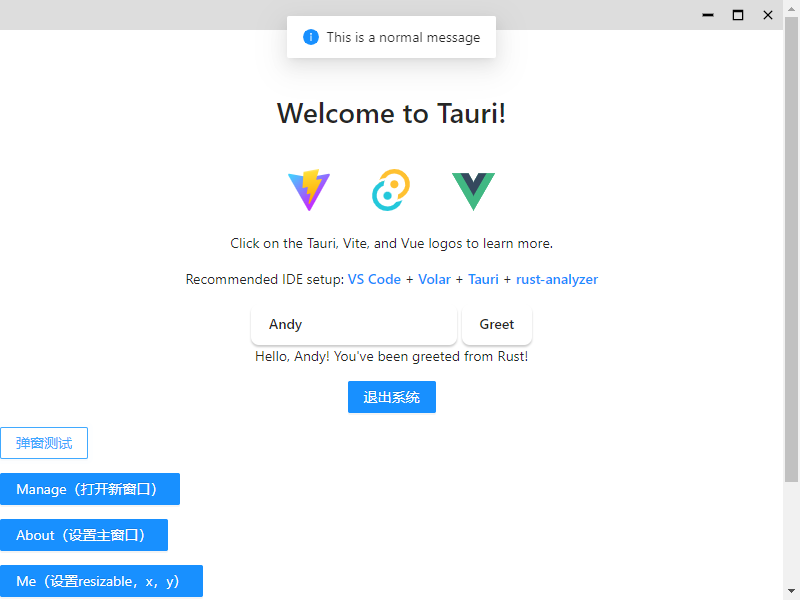
非常简单的几步就能快速搭建 vue3+tauri 桌面端模板。接下来就能顺利的开发了。
tauri 也提供了如下几种常用创建多窗口的方法。
- tauri.conf.json
{"tauri": {"windows": [{"label": "external","title": "Tauri App","url": "https://tauri.app"},{"label": "local","title": "Tauri","url": "home.html"}]}
}
- src-tauri/src/main.rs
tauri::Builder::default().setup(|app| {let docs_window = tauri::WindowBuilder::new(app,"external", /* the unique window label */tauri::WindowUrl::External("https://tauri.app/".parse().unwrap())).build()?;let local_window = tauri::WindowBuilder::new(app,"local",tauri::WindowUrl::App("index.html".into())).build()?;Ok(())
})
- 通过前端 JS 创建窗口。
import { WebviewWindow } from '@tauri-apps/api/window'
const webview = new WebviewWindow('main_win', {url: '/home',
})webview.once('tauri://created', function () {// webview window successfully created
})
webview.once('tauri://error', function (e) {// an error happened creating the webview window
})
具体详细的介绍,大家可以去官网查看,文档都有非常详细的讲解。
Multiwindow | Tauri Apps
上面介绍的方法比较适用于一些简单的窗口,对于一些复杂多开窗口,还得封装一个窗口创建器,直接通过传入参数快速生成窗体。
createWin({label: 'Home',title: '主页',url: '/home',width: 800,height: 600,
})
新建一个 windows 文件夹,用来封装窗口及调用窗口。
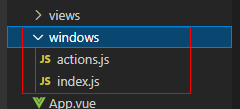
/*** @desc    窗口容器* @author: YXY  Q:282310962* @time    2022.10*/import { WebviewWindow, appWindow, getAll, getCurrent } from '@tauri-apps/api/window'
import { relaunch, exit } from '@tauri-apps/api/process'
import { emit, listen } from '@tauri-apps/api/event'import { setWin } from './actions'// 系统参数配置
export const windowConfig = {label: null,            // 窗口唯一labeltitle: '',              // 窗口标题url: '',                // 路由地址urlwidth: 900,             // 窗口宽度height: 640,            // 窗口高度minWidth: null,         // 窗口最小宽度minHeight: null,        // 窗口最小高度x: null,                // 窗口相对于屏幕左侧坐标y: null,                // 窗口相对于屏幕顶端坐标center: true,           // 窗口居中显示resizable: true,        // 是否支持缩放maximized: false,       // 最大化窗口decorations: false,     // 窗口是否无边框及导航条alwaysOnTop: false,     // 置顶窗口
}class Windows {constructor() {this.mainWin = null}// 获取窗口getWin(label) {return WebviewWindow.getByLabel(label)}// 获取全部窗口getAllWin() {return getAll()}// 创建新窗口async createWin(options) {const args = Object.assign({}, windowConfig, options)// 判断窗口是否存在const existWin = getAll().find(w => w.label == args.label)if(existWin) {if(existWin.label.indexOf('main') == -1) {await existWin?.unminimize()await existWin?.setFocus()return}await existWin?.close()}// 创建窗口对象let win = new WebviewWindow(args.label, args)// 是否最大化if(args.maximized && args.resizable) {win.maximize()}// 窗口创建完毕/失败win.once('tauri://created', async() => {console.log('window create success!')...})win.once('tauri://error', async() => {console.log('window create error!')})}// 开启主进程监听事件async listen() {// 创建新窗体await listen('win-create', (event) => {console.log(event)this.createWin(JSON.parse(event.payload))})// 显示窗体await listen('win-show', async(event) => {if(appWindow.label.indexOf('main') == -1) returnawait appWindow.show()await appWindow.unminimize()await appWindow.setFocus()})// 隐藏窗体await listen('win-hide', async(event) => {if(appWindow.label.indexOf('main') == -1) returnawait appWindow.hide()})// 退出应用await listen('win-exit', async(event) => {setWin('logout')await exit()})// 重启应用await listen('win-relaunch', async(event) => {await relaunch()})// 主/渲染进程传参await listen('win-setdata', async(event) => {await emit('win-postdata', JSON.parse(event.payload))})}
}export default Windows
actions.js进行一些调用处理。
/*** 处理渲染器进程到主进程的异步通信*/import { WebviewWindow } from '@tauri-apps/api/window'
import { emit } from '@tauri-apps/api/event'/*** @desc 创建新窗口*/
export async function createWin(args) {await emit('win-create', args)
}/*** @desc 获取窗口* @param args {string}*/
export async function getWin(label) {return await WebviewWindow.getByLabel(label)
}/*** @desc 设置窗口* @param type {string} 'show'|'hide'|'close'|'min'|'max'|'max2min'|'exit'|'relaunch'*/
export async function setWin(type) {await emit('win-' + type)
}/*** @desc 登录窗口*/
export async function loginWin() {await createWin({label: 'Login',title: '登录',url: '/login',width: 320,height: 420,resizable: false,alwaysOnTop: true,})
}// ...
在需要调用创建窗口的.vue页面,引入actions.js文件。
import { loginWin, createWin } from '@/windows/actions'
const createManageWin = async() => {createWin({label: 'Manage',title: '管理页面',url: '/manage',width: 600,height: 450,minWidth: 300,minHeight: 200})
}const createAboutWin = async() => {createWin({label: 'About',title: '关于页面',url: '/about',width: 500,height: 500,resizable: false,alwaysOnTop: true})
}
一些注意点
- 创建系统托盘图标
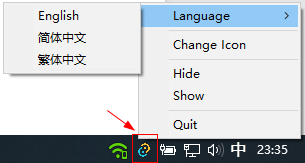
use tauri::{AppHandle, Manager, CustomMenuItem, SystemTray, SystemTrayEvent, SystemTrayMenu, SystemTrayMenuItem, SystemTraySubmenu
};// 托盘菜单
pub fn menu() -> SystemTray {let quit = CustomMenuItem::new("quit".to_string(), "Quit");let show = CustomMenuItem::new("show".to_string(), "Show");let hide = CustomMenuItem::new("hide".to_string(), "Hide");let change_ico = CustomMenuItem::new("change_ico".to_string(), "Change Icon");let tray_menu = SystemTrayMenu::new().add_submenu(SystemTraySubmenu::new("Language", // 语言菜单SystemTrayMenu::new().add_item(CustomMenuItem::new("lang_english".to_string(), "English")).add_item(CustomMenuItem::new("lang_zh_CN".to_string(), "简体中文")).add_item(CustomMenuItem::new("lang_zh_HK".to_string(), "繁体中文")),)).add_native_item(SystemTrayMenuItem::Separator) // 分割线.add_item(change_ico).add_native_item(SystemTrayMenuItem::Separator).add_item(hide).add_item(show).add_native_item(SystemTrayMenuItem::Separator).add_item(quit);SystemTray::new().with_menu(tray_menu)
}// 托盘事件
pub fn handler(app: &AppHandle, event: SystemTrayEvent) {match event {SystemTrayEvent::LeftClick {position: _,size: _,..} => {println!("点击左键");}SystemTrayEvent::RightClick {position: _,size: _,..} => {println!("点击右键");}SystemTrayEvent::DoubleClick {position: _,size: _,..} => {println!("双击");}SystemTrayEvent::MenuItemClick { id, .. } => match id.as_str() {"change_ico" => { // 更新托盘图标app.tray_handle().set_icon(tauri::Icon::Raw(include_bytes!("../icons/new.png").to_vec())).unwrap();}lang if lang.contains("lang_") => { // 选择语言,匹配 id 前缀包含 `lang_` 的事件Lang::new(app,id, // 点击菜单的 idvec![Lang {name: "English",id: "lang_english",},Lang {name: "繁体中文",id: "lang_zh_HK",},Lang {name: "简体中文",id: "lang_zh_CN",},],);}"hide" => {// let window = app.get_window("main").unwrap();// window.show().unwrap();println!("点击隐藏");}"show" => {println!("点击显示");}"quit" => {println!("点击退出");std::process::exit(0);}_ => {}},_ => {}}
}struct Lang<'a> {name: &'a str,id: &'a str,
}impl Lang<'static> {fn new(app: &AppHandle, id: String, langs: Vec) {// 获取点击的菜单项langs.iter().for_each(|lang| {let handle = app.tray_handle().get_item(lang.id);if lang.id.to_string() == id.as_str() {// 设置菜单名称handle.set_title(format!("  {}", lang.name)).unwrap();// 还可以使用 `set_selected`、`set_enabled` 和 `set_native_image`(仅限 macOS)handle.set_selected(true).unwrap();} else {handle.set_title(lang.name).unwrap();handle.set_selected(false).unwrap();}});}
}
创建托盘图标,默认图标文件在src-tauri/icons目录下。如果想使用自定义的.ico图标,可通过tauri.cong.json文件配置。
"systemTray": {"iconPath": "icons/tray.ico","iconAsTemplate": true,"menuOnLeftClick": false
}
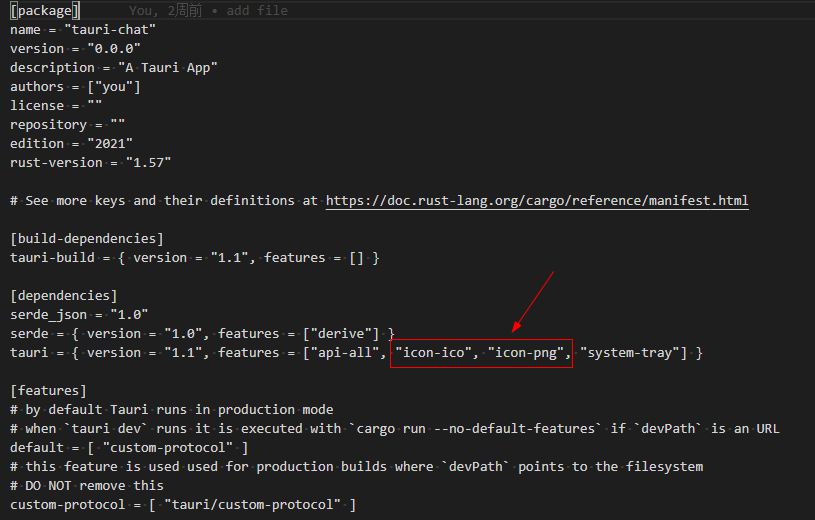
如果setIcon报错,则需要在 src-tauri/src/Cargo.toml 中配置 icon-ico 或 icon-png
- tauri 配置自定义拖拽区域。
当创建窗口的时候配置了 decorations: false 则会不显示窗口边框及顶部导航栏。
此时在需要拖动元素上加一个 data-tauri-drag-region 属性,即可实现自定义区域拖动窗口功能。这个功能有些类似 electron 中自定义拖拽 -webkit-app-region: drag
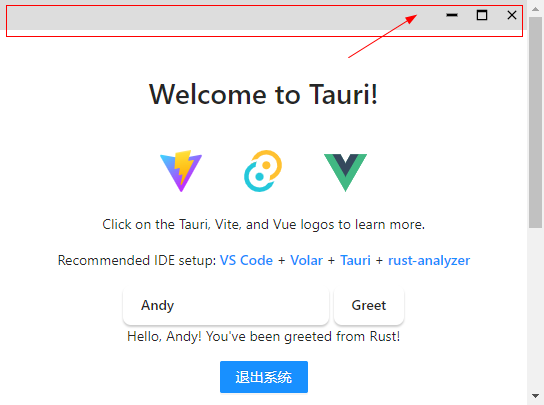
不过点击窗口右键,会出现系统菜单。这样显得应用不够原生,可以简单的通过禁用右键菜单来屏蔽功能。
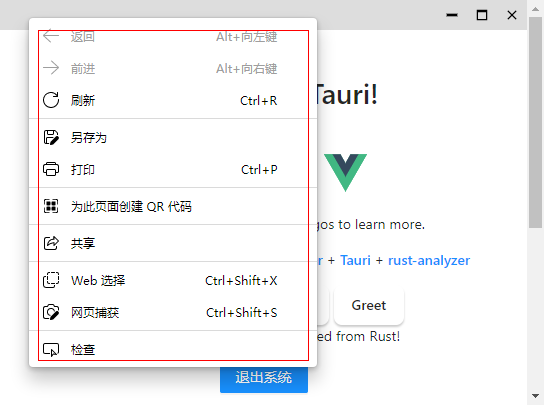
export function disableWinMenu() {document.addEventListener('contextmenu', e => e.preventDefault())
}
disableWinMenu()
好了,基于 tauri+vue3 构建多窗口桌面应用就分享到这里。希望对大家有丢丢帮助哈~~ 😙