

windows的小米11真机appium微信爬虫
1、下载appium
仓库地址
2、下载python的包
pip install Appium-Python-Client -i https://pypi.tuna.tsinghua.edu.cn/simple
3、下载android-sdk
先下SDK Tools
国内一个镜像网站
参考这个教程
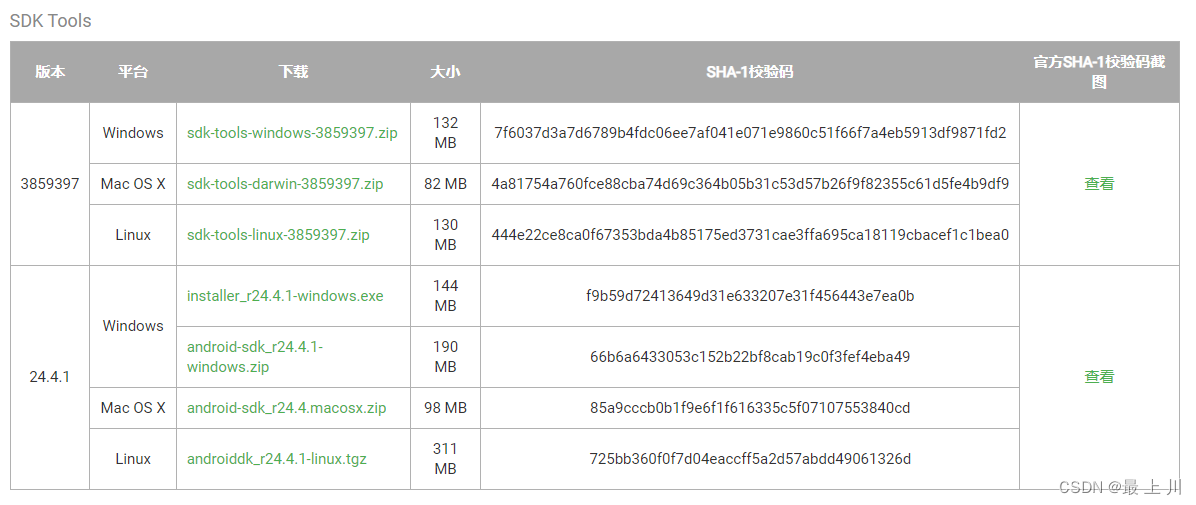
安装好后,运行这个SDK Manager.exe
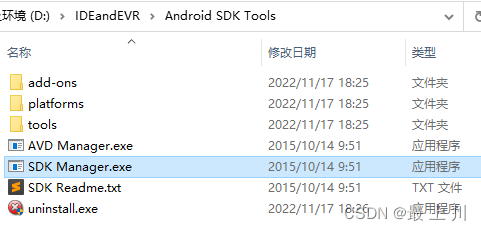
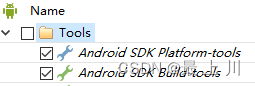

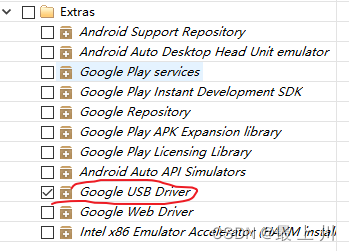
然后install,同意协议,等待安装结束

4、配置环境变量
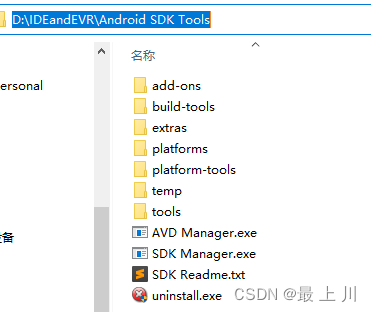
ANDROID_HOME值为刚刚安装的目录,如下图就是D:\IDEandEVR\Android SDK Tools

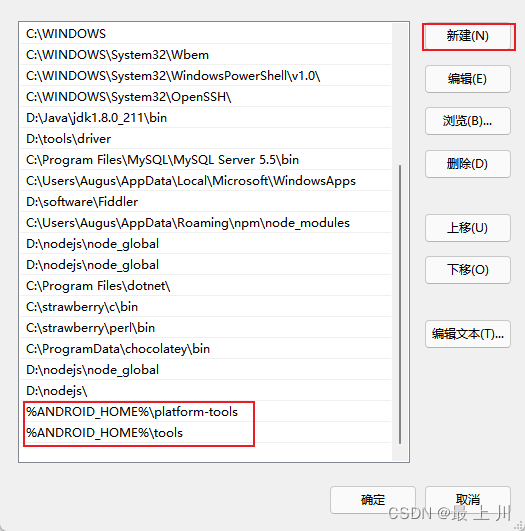
然后在PATH中添加
%ANDROID_HOME%\platform-tools
%ANDROID_HOME%\tools
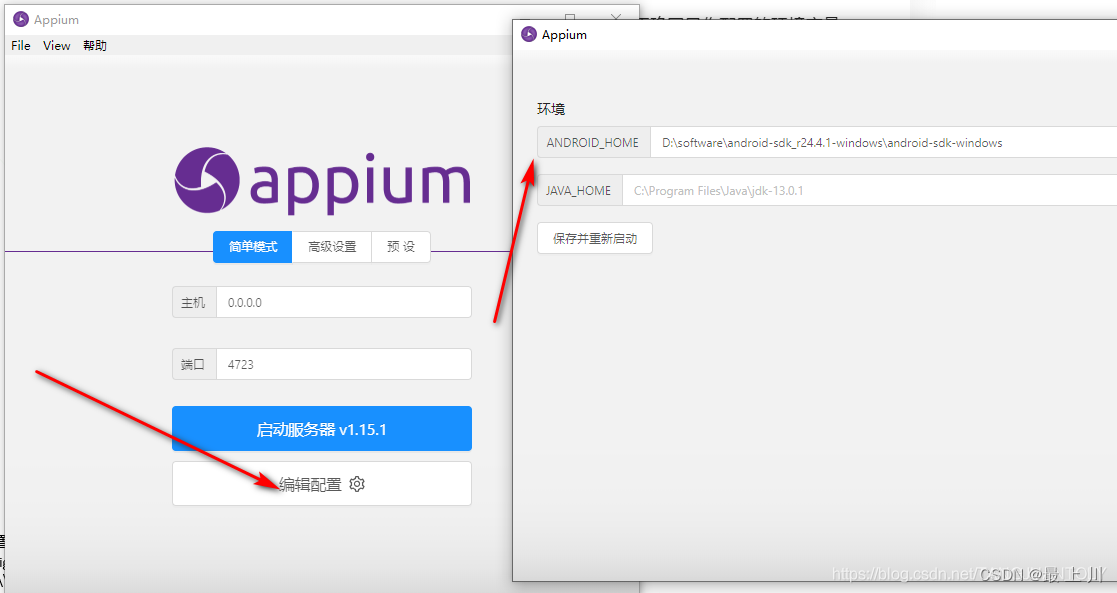
再配置下appium的ANDROID_HOME
4、手机插上电脑,进入开发者模式
MIUI进入开发者模式
小米手机以开发者模式连上电脑
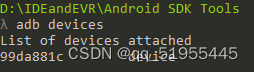
使用adb devices进行测试,此代码也是下面json里的deviceName数据
先在上面那个appium点启动服务器
5、
写一段代码测试
from appium import webdriverif __name__ == '__main__':desired_caps = {'platformName': 'Android','deviceName': '99da881c','platformVersion': '12','appPackage': 'com.tencent.mm','appActivity': 'com.tencent.mm.ui.LauncherUI','automationName':'UIAutomator2',# 高版本android需要这个,好像是从11开始 }driver = webdriver.Remote('http://127.0.0.1:4723/wd/hub', desired_caps)print("结束")
如果运行正常,真机上会打开微信的登录界面
6、开始找界面元素
首先,不推荐uiautomatorviewer,即下图这个,因为jdk版本等问题,有需要改源码才能解决的BUG
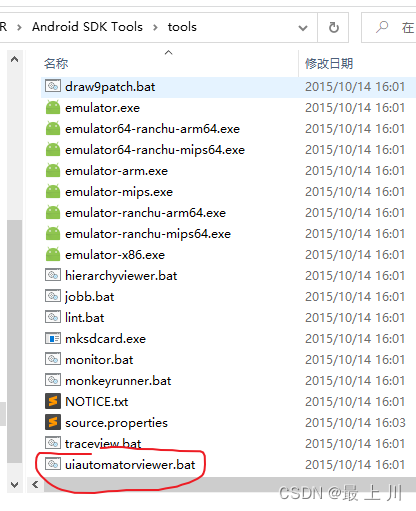
我这里决定使用Appium自带的Appium Inspector
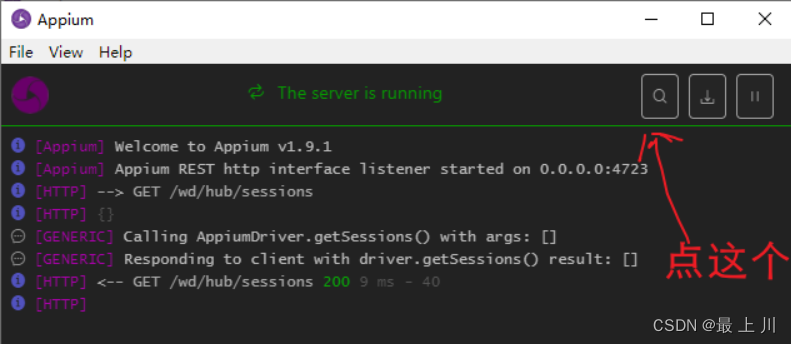
把python代码里的配置数据弄到这里,可以填表单,或者右边粘贴json,但是很容易说json语法错误,我也不知道为什么
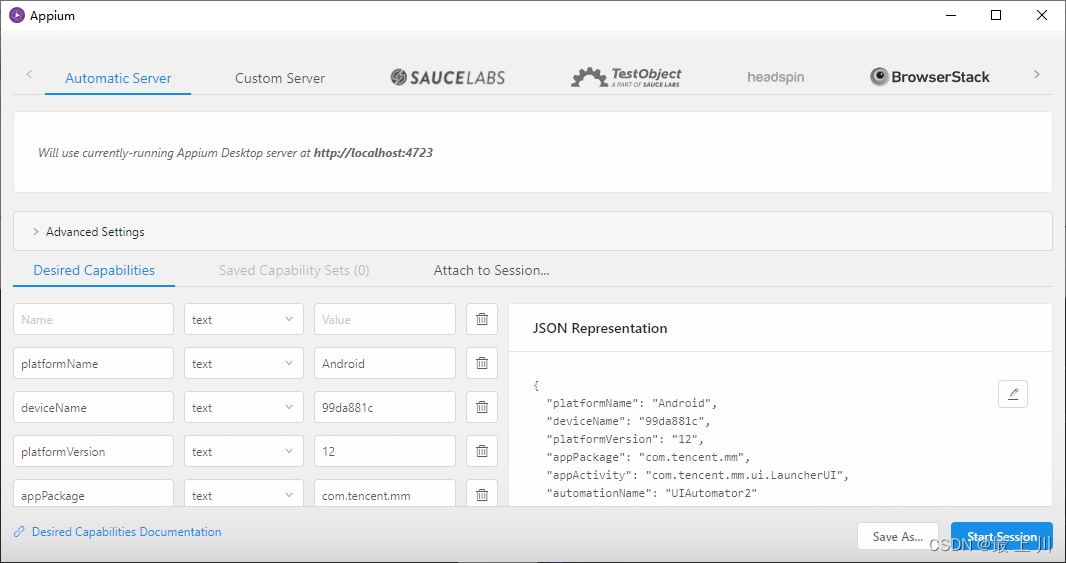
新增的noReset是防止重置应用,避免需要反复登录
{"platformName": "Android","deviceName": "99da881c","platformVersion": "12","appPackage": "com.tencent.mm","appActivity": "com.tencent.mm.ui.LauncherUI","automationName": "UIAutomator2","noReset": true
}
用过开发者工具的看到下图应该知道该怎么弄了
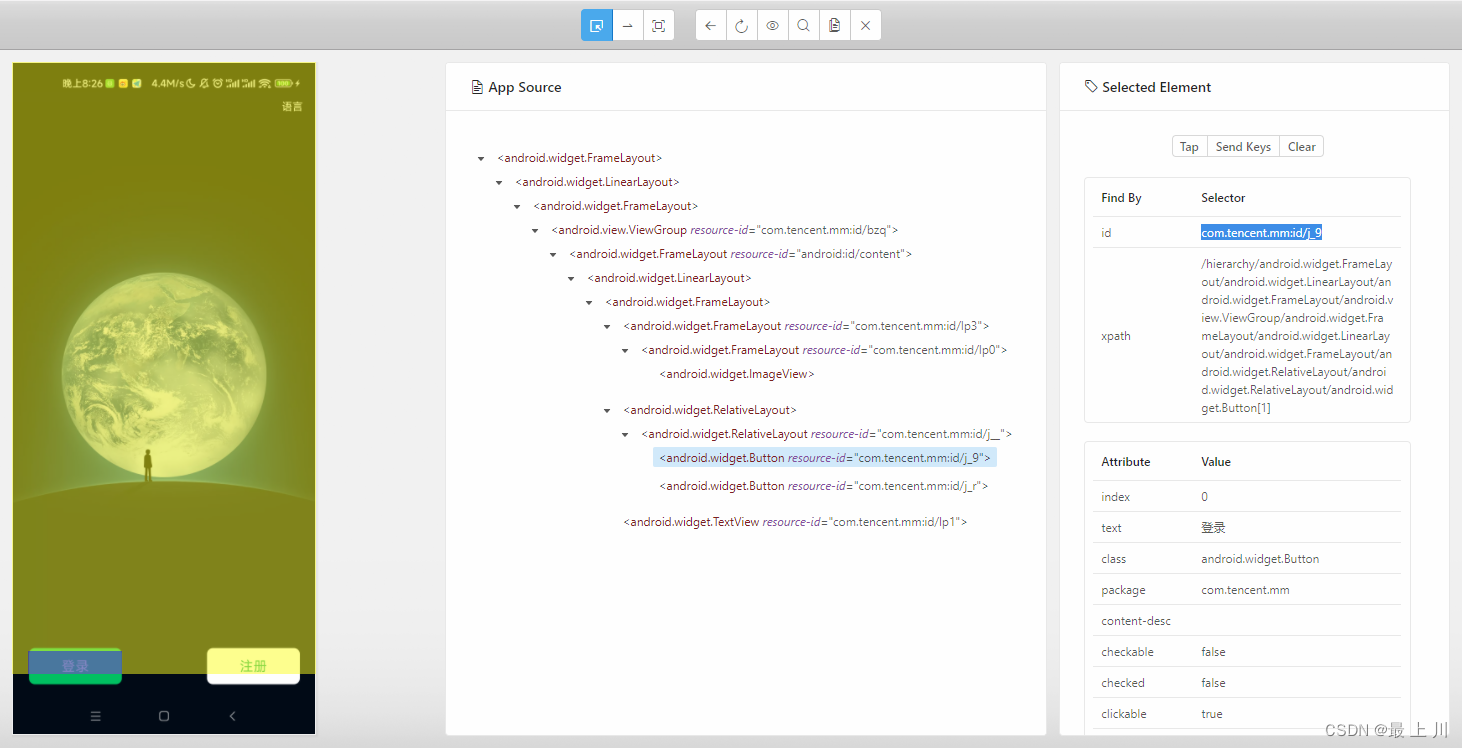
7、注意事项
appium是真的慢,找一个登录按钮找个20s,这里先放一个最基本的避坑思路
2020年12月30日 appium 执行速度优化
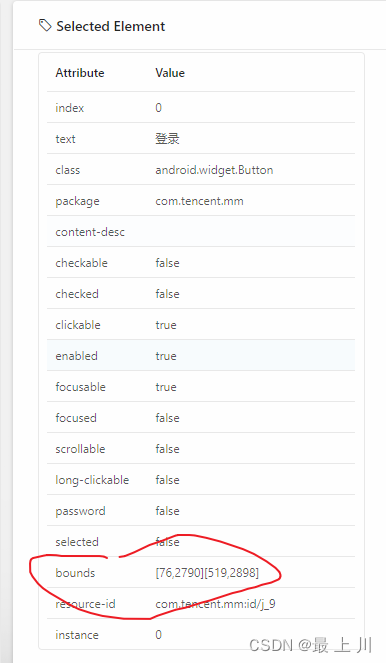
很多博客提出,对于固定位置的组件,直接用坐标点击,速度能快一半,但是如果不特殊处理,不能兼容不同屏幕大小的手机
下面红圈的两个元组,表示这个组件左上角和右下角的定位,所以我们只要触摸(x1~ x2,y1 ~ y2)的就行了
driver.tap([(200, 2800)], 500)
8、
中文API
9、应付学校作业写的一个监听微信消息的代码
import time
import datetimefrom appium import webdriver
from appium.webdriver.common.mobileby import MobileByfrom appium.webdriver.common.touch_action import TouchActiondef response(text):if text == "现在什么时候了":return datetime.datetime.now().strftime("%Y-%m-%d %H:%M:%S")elif text == "感觉Appium怎么样":return "配环境有点小麻烦,运行时速度较慢,文档不太全面,感觉用的人不多,不太行"elif text == "你这个脚本的效果是什么":return "检测微信主页的可视范围内(不下滑时)的所有有未读信息的好友,判断他们的文本并进行回复"elif text == "你是谁":return "刘宇阳"elif text == "缺憾是什么":return "因为怕登录频繁出问题,就没写登录部分;不能回复所有好友的消息,因为框架只能检测屏幕可视范围的组件,可以实现下滑,但是会很麻烦;轮询,所以回复速度可能有点慢"elif text == "为什么能回复自己发的消息":return "因为左右两边的聊天框是同一类组件,区分起来有点麻烦;不区分也方便自己测试"else:return Noneif __name__ == '__main__':# Appium的配置desired_caps = {'platformName': 'Android','deviceName': '自己用命令获得','platformVersion': '12','appPackage': 'com.tencent.mm','appActivity': 'com.tencent.mm.ui.LauncherUI','automationName': 'UIAutomator2','noReset': True,  # 不要重置App,不需要重新登录}# 建立会话并打开微信界面driver = webdriver.Remote('http://127.0.0.1:4723/wd/hub', desired_caps)# 不登录了,怕出问题,需要手机已提前登录微信# 用ID查找到元素再点击# driver.find_element(By.ID,"com.tencent.mm:id/j_9").click()# 根据屏幕上的坐标点击(更快但是不兼容不同屏幕)# driver.tap([(200, 2800)], 500)try:while True:print("监听中...")time.sleep(3)red_dots_tmp = driver.find_elements(MobileBy.ID, "com.tencent.mm:id/kmv")red_dots = []for dot in red_dots_tmp:TouchAction(driver).tap(dot).perform()time.sleep(1)msg_tmp = driver.find_elements(MobileBy.ID, "com.tencent.mm:id/b4b")text = msg_tmp[len(msg_tmp) - 1].textresp = response(text)if resp != None:# 点击输入框text_input = driver.find_element(MobileBy.ID, "com.tencent.mm:id/b4a")TouchAction(driver).tap(text_input).perform()# 放入文本text_input.set_text(resp)# 发送send_btn = driver.find_element(MobileBy.ID, "com.tencent.mm:id/b8k")TouchAction(driver).tap(send_btn).perform()# 返回到主页back_btn = driver.find_element(MobileBy.ID, "com.tencent.mm:id/yn")TouchAction(driver).tap(back_btn).perform()# 以下代码弃用,不滑动了,只取第一面的# origin_el = red_dots[0]# idx = 8# if len(red_dots) < 8:#     idx = len(red_dots)# destination_el = red_dots[idx]# driver.drag_and_drop(destination_el, origin_el)except:print("结束")
上一篇:描写自然美景的古诗词