

原生API编写简单富文本编辑器001
创始人
2024-03-28 06:35:14
原生API编写简单富文本编辑器001
从这一节开始,我们将亲自动手,使用我们之前介绍过的浏览器原生API来实现一个简单的可以处理文本的富文本编辑器。
1. 设计
这一个简单版的编辑器,由于我们是基于原生的API,基于浏览器原生API的能力,我们将实现以下功能:
-
文字输入
-
文字格式调整
- 加粗
- 斜体
- 下划线
- 删除线
- 前景色
- 背景色
- 改变字号
- 改变字体
- 上角标
- 下角标
-
段落格式调整
- 清除格式
- 首行缩进
- 段落居左对齐
- 段落居右对齐
- 段落居中对齐
- 段落两端对齐
- 插入有序列表
- 插入无序列表
-
其它
- 插入超链接
- 取消超链接
- 插入网络图片
- 拷贝
- 剪切
- 撤销
- 重做
2. 图标准备
通常,当用户使用富文本编辑器时,都希望点击一个按钮来实现某种功能,而传统的按钮太过丑陋,所以我们为其准备一个按钮图标。
这里,我们使用iconfont.cn 上提供的免费图标。
我们可以进入iconfont 官网,登陆后,新建一个项目:
[外链图片转存失败,源站可能有防盗链机制,建议将图片保存下来直接上传(img-ktRo8kIW-1670512094428)(https://gitee.com/hjb2722404/tuchuang/raw/master/img/202203101510248.png)]
然后根据功能设计,将免费图标先添加到购物车,再导入到项目中:
[外链图片转存失败,源站可能有防盗链机制,建议将图片保存下来直接上传(img-VKddQ9G2-1670512094431)(https://gitee.com/hjb2722404/tuchuang/raw/master/img/202203101518863.png)]
3. 编写界面
3.1 初始结构
├── index.html└── static├── css│ ├── iconfont│ │ ├── demo.css│ │ ├── demo_index.html│ │ ├── iconfont.css│ │ ├── iconfont.js│ │ ├── iconfont.json│ │ ├── iconfont.svg│ │ ├── iconfont.ttf│ │ ├── iconfont.woff│ │ └── iconfont.woff2│ └── index.css└── js|——index.js
3.2 html结构:
Document
注意:
我们这里为每一个按钮所在
li元素添加了command属性,这个属性就是当点击该按钮时需要传递给
document.execCommand(command);命令的命令名称参数。
3.3 css
.editor-box {width: 960px;margin: auto;
}.editor {width: 100%;margin-top: 50px;height: 600px;border: 1px solid #ccc;
}.editor-toolbar {width: 100%;border-bottom: 1px dotted #555;
}.editor-toolbar ul {list-style: none;
}.editor-toolbar ul li {width: 20px;height: 20px;line-height: 20px;display: inline-block;cursor: pointer;margin-left: 10px;
}
.editor-toolbar ul li .iconfont {font-size: 16px;
}
.editor-content {margin-top: 20px;height: 500px;overflow: auto;padding: 0 25px;
}
3.4 界面效果
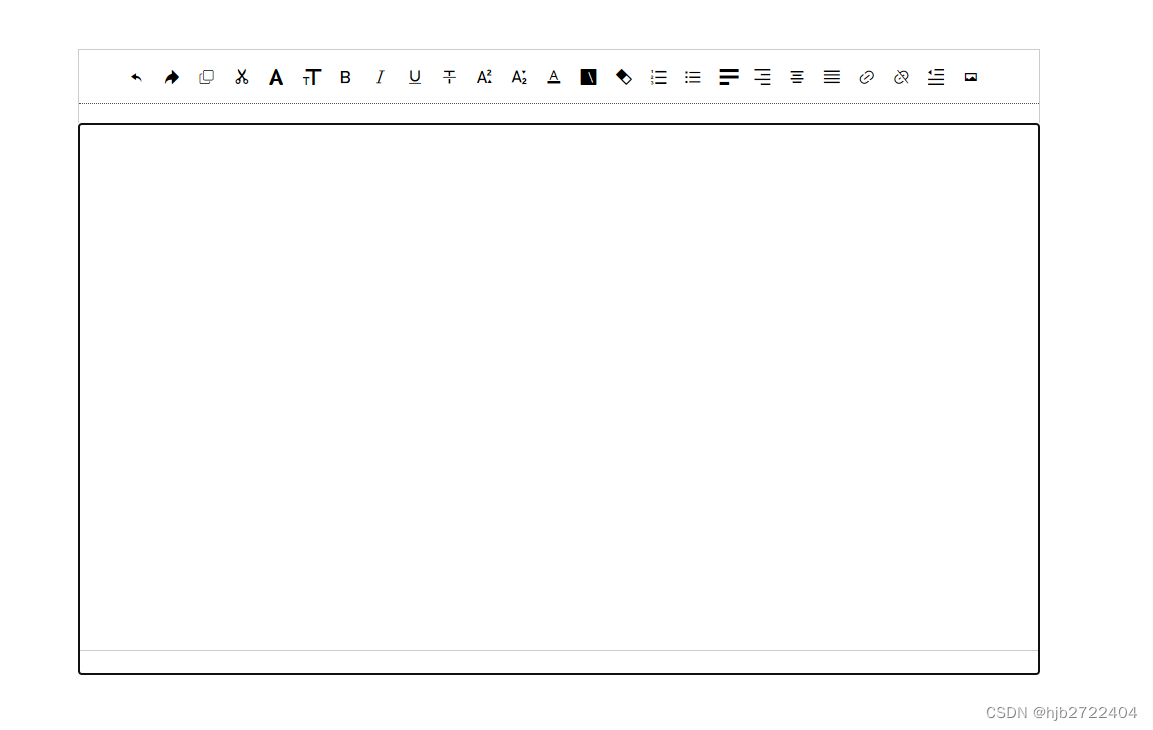
好了,我们写好了界面,下一节,我们将实现编辑器功能。
本系列文章代码可从gitee获取
(本节内容对应代码可在1.0.1 分支找到)
相关内容
热门资讯
埃菲尔铁塔在哪 中国仿建埃菲尔...
2019年4月26日,广西南宁市,街头惊现一座巨型山寨版埃菲尔铁塔,高约20米,白色塔身,造型逼真,...
北京的名胜古迹 北京最著名的景...
北京从元代开始,逐渐走上帝国首都的道路,先是成为大辽朝五大首都之一的南京城,随着金灭辽,金代从海陵王...
苗族的传统节日 贵州苗族节日有...
【岜沙苗族芦笙节】岜沙,苗语叫“分送”,距从江县城7.5公里,是世界上最崇拜树木并以树为神的枪手部落...
长白山自助游攻略 吉林长白山游...
昨天介绍了西坡的景点详细请看链接:一个人的旅行,据说能看到长白山天池全凭运气,您的运气如何?今日介绍...
世界上最漂亮的人 世界上最漂亮...
此前在某网上,选出了全球265万颜值姣好的女性。从这些数量庞大的女性群体中,人们投票选出了心目中最美...
应用未安装解决办法 平板应用未...
---IT小技术,每天Get一个小技能!一、前言描述苹果IPad2居然不能安装怎么办?与此IPad不...
脚上的穴位图 脚面经络图对应的...
人体穴位作用图解大全更清晰直观的标注了各个人体穴位的作用,包括头部穴位图、胸部穴位图、背部穴位图、胳...
猫咪吃了塑料袋怎么办 猫咪误食...
你知道吗?塑料袋放久了会长猫哦!要说猫咪对塑料袋的喜爱程度完完全全可以媲美纸箱家里只要一有塑料袋的响...
demo什么意思 demo版本...
618快到了,各位的小金库大概也在准备开闸放水了吧。没有小金库的,也该向老婆撒娇卖萌服个软了,一切只...
埃菲尔铁塔在哪 中国仿建埃菲尔...
2019年4月26日,广西南宁市,街头惊现一座巨型山寨版埃菲尔铁塔,高约20米,白色塔身,造型逼真,...
苗族的传统节日 贵州苗族节日有...
【岜沙苗族芦笙节】岜沙,苗语叫“分送”,距从江县城7.5公里,是世界上最崇拜树木并以树为神的枪手部落...
北京的名胜古迹 北京最著名的景...
北京从元代开始,逐渐走上帝国首都的道路,先是成为大辽朝五大首都之一的南京城,随着金灭辽,金代从海陵王...
长白山自助游攻略 吉林长白山游...
昨天介绍了西坡的景点详细请看链接:一个人的旅行,据说能看到长白山天池全凭运气,您的运气如何?今日介绍...
世界上最漂亮的人 世界上最漂亮...
此前在某网上,选出了全球265万颜值姣好的女性。从这些数量庞大的女性群体中,人们投票选出了心目中最美...
猫咪吃了塑料袋怎么办 猫咪误食...
你知道吗?塑料袋放久了会长猫哦!要说猫咪对塑料袋的喜爱程度完完全全可以媲美纸箱家里只要一有塑料袋的响...
应用未安装解决办法 平板应用未...
---IT小技术,每天Get一个小技能!一、前言描述苹果IPad2居然不能安装怎么办?与此IPad不...
脚上的穴位图 脚面经络图对应的...
人体穴位作用图解大全更清晰直观的标注了各个人体穴位的作用,包括头部穴位图、胸部穴位图、背部穴位图、胳...
demo什么意思 demo版本...
618快到了,各位的小金库大概也在准备开闸放水了吧。没有小金库的,也该向老婆撒娇卖萌服个软了,一切只...